


WordPress how-to · Decommissioning
How to Delete a WordPress Site Safely (Without Losing Data or Email)
Deleting a WordPress site sounds like the easy part of a web project — until the company email dies with the hosting account, the old URLs keep ranking with nowhere to go, or someone needs last year’s order history a month after the database was dropped. This guide walks through how to remove a WordPress site in the order that protects your data, your email, and whatever SEO value the old site earned.
Step 0: Are you sure deletion is the right move?

Three situations look like “delete the site” but call for different actions:
- The site is being replaced. Don’t delete — redirect. Every old URL should send a 301 to its closest equivalent on the new site so rankings and backlinks transfer. This is a migration task; deleting first is how businesses restart their SEO from zero. (If a redesign is the real goal, our website redesign service handles exactly this transition.)
- You might need the content or data later. Archive instead: full backup off the server, content export, then take the site offline. Client records, order history, and old articles have a way of being wanted a year later — and some records have legal retention requirements.
- The site is truly done — a closed business, an abandoned side project, a duplicate install. That is the genuine deletion case the rest of this guide covers.
wordpress.com or self-hosted? They delete differently
wordpress.com (the hosted service): deletion happens in the dashboard under Settings → General → “Delete your site permanently”. WordPress.com walks you through an export first and asks you to type the site address to confirm. Note that deleting the site does not automatically cancel paid plans or release a custom domain — handle those separately in your account.
Self-hosted WordPress (your own hosting — the common case for business sites): there is no delete button. The site is a folder of files plus a MySQL database on your hosting account, and removing it is a manual process. That is what the rest of this guide covers.
The safe deletion order for self-hosted WordPress

1. Take a full backup — yes, of the site you are deleting
Files and database, downloaded off the server (your computer plus cloud storage). Use your backup plugin’s export, or grab the files over SFTP and the database via phpMyAdmin’s export. You are not backing it up because you plan to restore it; you are backing it up because “can you get that thing from the old site?” is a question that arrives after deletion, not before. Keep it a year minimum.
2. Export anything you may reuse
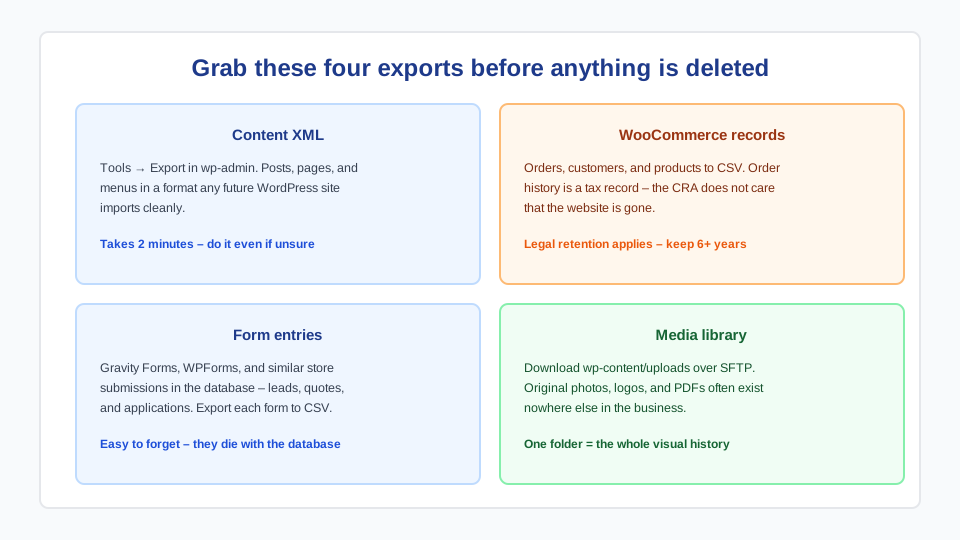
- Content: Tools → Export in wp-admin produces an XML of posts and pages that imports cleanly into any future WordPress site.
- WooCommerce: export orders, customers, and products separately — tax records live here.
- Form entries: plugins like Gravity Forms and WPForms store submissions in the database; export them to CSV.
- Media: download
wp-content/uploads— original images often exist nowhere else.
3. Protect your email and DNS before touching hosting
This is the step that separates a clean decommissioning from a business emergency. Many small businesses run their email through the same hosting account as the website. Cancel the hosting plan and the mailboxes vanish with it — mid-week, with no warning to the people using them.
Before deleting anything, look up your domain’s MX records (your host’s DNS panel, or an online MX lookup tool). If they point at your web host, migrate email first — to Google Workspace, Microsoft 365, or another mail host — and confirm mail flows before proceeding. Also note any other DNS records living on that hosting account (subdomains, verification records); they need a new home if the hosting DNS goes away. Unsure what your DNS is actually doing? That is a ten-minute check for us — faster than repairing it after the fact.
4. Delete the WordPress files
Over SFTP or the hosting file manager, delete the site’s directory: wp-admin, wp-includes, wp-content, and the loose files including wp-config.php. If the site lives in a subdirectory or subdomain of a hosting account you are keeping, delete just that directory and its subdomain entry.
5. Drop the database and database user
Files gone is not site gone. In your hosting panel (MySQL Databases in cPanel), delete the site’s database and the database user created for it. The database name and user are in the wp-config.php you saved in step 1 if you are unsure which is which — one more reason the backup comes first.
6. Decide what happens to the domain
- Keep renewing it (recommended for any business domain): protects your brand, keeps email working, and lets you redirect the domain later. A domain renewal costs less than a single hour of dealing with someone squatting your old name.
- Point it somewhere useful: at your main site, a successor business, or a one-page notice.
- Let it lapse deliberately: acceptable for throwaway projects — but understand expired domains with history get bought by SEO spammers, and any email addresses on that domain become receivable by the new owner. Never lapse a domain that ever handled business email.
7. Clean up Google: redirects, 410s, and Search Console
Google does not know you deleted the site; it knows pages stopped responding. Left alone, old URLs linger in results for months, showing searchers broken links with your name on them.
- If any successor exists — a new company site, a rebrand — 301 redirect the old domain’s valuable URLs to their closest equivalents.
- If nothing replaces it, serving
410 Gone(rather than 404) tells Google the removal is intentional and speeds deindexing. - For fast removal, verify the domain in Google Search Console and use the Removals tool — effective within days, while natural deindexing takes weeks to months.
The four mistakes we get called about
- Email died with the hosting. The MX records pointed at the web host. Prevention is step 3; the cure is an urgent mail migration while messages bounce.
- “We deleted the old site” mid-migration. The new site launched, the old one was deleted same-day, no redirects. Rankings and backlinks evaporated. If the old site had traffic, redirects must live somewhere — keep a minimal hosting plan or use the registrar’s redirect service.
- Deleted the files, left the database — or vice versa. Half-deleted sites leak: an orphaned database with customer data on a forgotten hosting account is a privacy incident waiting for a breach report.
- Deleted the wrong install. Agencies and hosts often stack staging copies, dev copies, and old versions on one account. Confirm the directory and the database against
wp-config.phpbefore deleting anything — especially on accounts you inherited.
Planning to rebuild rather than disappear? Read our guide to migrating platforms without downtime — the redirect and DNS thinking is the same, pointed in the opposite direction. And if the old site is being deleted because it was hacked beyond repair, a professional cleanup of the replacement environment is worth it before you rebuild on the same hosting account.
Frequently asked questions
Can I delete my WordPress site but keep the domain?
Yes — the domain and the website are separate services. Keep the domain registered at your registrar, delete the site files and database at the host, and point the domain’s DNS wherever you like (a parking page, your main site, or nothing). Just make sure any email on that domain is hosted somewhere that survives the website’s removal.
Does deleting WordPress delete my email?
Not directly — but if your email is hosted on the same hosting account as the website (check whether your MX records point at your web host), cancelling that hosting account kills the mailboxes. Migrate email to a dedicated provider such as Google Workspace or Microsoft 365 before cancelling hosting, and confirm mail flows first.
What is the difference between deleting and deactivating a site?
Deactivating (taking a site offline, enabling maintenance mode, or suspending hosting) is reversible — files and database remain. Deleting removes the files and database permanently. If there is any chance you will want the content, data, or design again, archive with a full backup and take it offline rather than deleting.
How do I remove my old site from Google search results?
Three tools, by situation: 301 redirects to a successor site transfer the value; a 410 Gone response tells Google the removal is intentional and speeds natural deindexing; and Google Search Console’s Removals tool hides URLs within days. Simply deleting the site leaves broken results lingering for months.
Can a deleted WordPress site be recovered?
Only from a backup. If you kept the files + database backup from before deletion, the site can be restored to any hosting account in under an hour. Without one, options shrink to host-side backups (often retained 14–30 days after deletion, sometimes not at all) and the Internet Archive for content text. This is why step 1 is non-negotiable.