

WordPress troubleshooting · Site down
There Has Been a Critical Error on This Website: WordPress Recovery Guide
“There has been a critical error on this website. Please check your site admin email inbox for instructions.” If your WordPress site — or worse, your customers — are seeing this message right now, take a breath: it is one of the most fixable failures in WordPress. This guide shows you how to find the real error behind the generic message and repair it step by step, even if you are locked out of the dashboard.
What the critical error message actually means
WordPress shows this screen whenever a fatal PHP error stops a page from finishing. Something — a plugin, the theme, a core file, or the server configuration — crashed hard enough that WordPress could not render the page, so it shows visitors the generic message instead of the raw error (which could leak sensitive details).
Since WordPress 5.2, a fatal error also triggers recovery mode: WordPress emails the site admin address with the name of the failing plugin or theme and a special login link that loads the dashboard with the broken component paused. That email is the fastest path to a fix — which is also why a working reset/notification email setup matters (if admin emails from your site never arrive, fix that too; see our guide to WordPress emails not sending).
One quick disambiguation: if visitors see “Service Unavailable” or a maintenance page rather than the critical-error wording, you are likely dealing with a different failure — see our 503 error guide for that family of problems.
Step 1: Find the real error (three places to look)

1. The recovery-mode email
Check the inbox (and spam folder) of the site’s admin email address for a message titled “Your Site is Experiencing a Technical Issue.” It names the plugin or theme at fault and includes a recovery-mode login link. Click it, log in, and WordPress opens the dashboard with the faulty extension paused so you can deactivate, update, or replace it calmly.
2. The WordPress debug log
No email? Turn on logging. Edit wp-config.php over SFTP or your hosting file manager and, above the “stop editing” line, set:
define( 'WP_DEBUG', true );
define( 'WP_DEBUG_LOG', true );
define( 'WP_DEBUG_DISPLAY', false );
Reload the broken page once, then open wp-content/debug.log. The last “PHP Fatal error” entry shows the exact file and line that failed. Turn WP_DEBUG back off when you are done.
3. The hosting error log
Every decent host records PHP errors. In cPanel look for “Errors” or the error_log file in the site root; managed hosts usually expose logs in their panel. Same rule applies: find the most recent fatal error and read the file path.
Step 2: Fix it by cause

Cause 1: A plugin conflict or bad plugin update
If the error log points at a plugin — or the crash happened right after an update — deactivate that plugin. Can’t reach the dashboard? Use SFTP or your hosting file manager: open wp-content/plugins/ and rename the plugin’s folder (for example woo-addon → woo-addon.off). WordPress instantly treats it as deactivated and the site usually comes straight back.
If you don’t know which plugin failed, rename the whole plugins folder to plugins.off. Site loads? A plugin is guilty. Rename the folder back, then rename individual plugin folders one at a time (or in halves) until you find it. Once identified: update it, roll it back to the previous version, or replace it. Repeated conflicts between plugins after every update are exactly what our plugin conflict repair service untangles.
Cause 2: A broken theme
If the path points at your theme — common after editing functions.php or updating a premium theme — switch to a default theme. Without dashboard access, rename the theme’s folder in wp-content/themes/; WordPress falls back to a default theme (make sure one, like twentytwentyfive, exists). If a recent functions.php edit caused it, undo that edit. Fatal errors in themes are usually one missing semicolon or one function call a PHP upgrade no longer supports.
Cause 3: A PHP version mismatch
Hosts periodically upgrade PHP, and code written for PHP 7 can crash on PHP 8. The reverse also happens: modern plugins requiring PHP 8 crash on old servers. Your hosting panel shows the active PHP version and usually lets you switch. Test the site on the version it last worked on; then plan updates so you can move to a current, supported PHP — running an outdated PHP forever is its own security problem.
Cause 4: Exhausted memory
“Allowed memory size … exhausted” in the log means PHP ran out of memory mid-page. Add this to wp-config.php:
define( 'WP_MEMORY_LIMIT', '256M' );If the host caps memory lower than that, ask them to raise it. And treat the limit as a symptom: a page builder stack, a runaway plugin, or an undersized hosting plan is usually what actually ate the memory.
Cause 5: A failed or incomplete update
Updates that time out or hit a full disk leave half-written files behind. For a plugin, delete its folder entirely and reinstall a fresh copy. For WordPress core, download the same version from wordpress.org and re-upload the wp-admin and wp-includes folders over the broken ones (never overwrite wp-content or wp-config.php). Also check disk usage — a 100% full hosting account breaks updates, sessions, and caches in confusing ways.
Cause 6: Malware or a bad cleanup
If nothing was updated and nobody touched the site, be suspicious. Injected code with syntax errors, or a half-done “cleanup” that deleted files other malware still references, both produce critical errors. Warning signs: unfamiliar admin users, modified core files, strange scheduled tasks, or the error coming and going. Don’t just silence the error — a compromised site needs a proper hacked WordPress cleanup: malware removal, core reinstall, credential rotation, and hardening.
Still down? The 15-minute emergency checklist
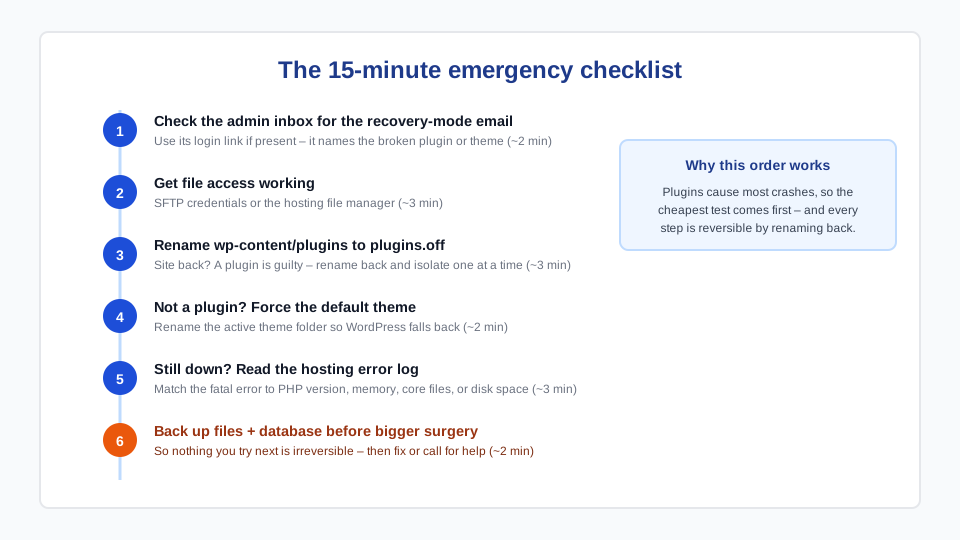
- Check the admin inbox for the recovery-mode email; use its login link if present.
- Get file access working: SFTP credentials or the hosting file manager.
- Rename
wp-content/pluginstoplugins.off— site back? It’s a plugin; isolate it. - Not a plugin? Rename the active theme’s folder to force the default theme.
- Still down? Read the hosting error log and match the cause above (PHP, memory, core, disk).
- Take a full backup of files + database before bigger surgery, so no step is irreversible.
If you get through that list and the site is still broken — or it is a revenue site and every hour matters — hand it to a professional. Our emergency website repair team works on exactly these failures for Metro Vancouver and BC businesses, usually restoring the site the same day, with a written explanation of what failed and why.
Prevent the next one
- Update deliberately: one plugin at a time, not the “update all” button on a Friday afternoon — and take a backup first.
- Use a staging site for theme changes and major plugin updates, so fatal errors happen where customers can’t see them.
- Keep backups you have actually test-restored, stored off the web server.
- Reduce plugin count. Every inactive or overlapping plugin is a future conflict; audit twice a year.
- Monitor uptime so you learn about a crash from an alert, not from a customer. Update discipline, staging, backups, and monitoring are exactly what a WordPress care plan automates.
Frequently asked questions
What causes “There has been a critical error on this website”?
A fatal PHP error that stops WordPress from rendering the page. The usual suspects: a plugin conflict or bad plugin update, a broken theme (often after editing functions.php), a PHP version change, exhausted memory, a failed update that left incomplete files, or malware. The recovery-mode email, debug log, or hosting error log names the exact file that failed.
Can I fix the critical error without a developer?
Often, yes. If the cause is a plugin or theme, renaming the offending folder over SFTP or the hosting file manager brings most sites back in minutes, and the recovery-mode email frequently tells you exactly which one to rename. Bring in a professional when the error log points at core files or the server, when malware is suspected, or when the site earns revenue and downtime costs more than the repair.
Where do I find the critical error log?
Three places: the recovery-mode email sent to the site admin address; the WordPress debug log at wp-content/debug.log after enabling WP_DEBUG_LOG in wp-config.php; and your hosting control panel’s PHP error log (in cPanel, look for “Errors” or an error_log file). Read the most recent “PHP Fatal error” line — the file path in it identifies the culprit.
Does the critical error mean my site was hacked?
Usually not — most critical errors follow an update or a code change. But if the error appeared with no recent changes, or you see unfamiliar admin users, modified core files, or the error coming and going, treat compromise as a real possibility and scan the site before simply silencing the error. Injected malicious code is a well-known cause of fatal errors.
How fast can a critical error be fixed?
When the cause is a plugin or theme, minutes — rename the folder and the site returns. PHP version, memory, and failed-update causes typically take under an hour with hosting access. Malware-related errors take longest because the site needs a proper cleanup, not just a restart. Professional emergency repairs for BC businesses are usually completed the same day.
Will restoring a backup fix the critical error?
Sometimes — but it is often the wrong first move. A restore rolls back every change since the backup (orders, content, user accounts), when the actual fix may be disabling one plugin. Diagnose first; restore only if files are corrupted beyond quick repair, and always keep a copy of the broken site before overwriting it.