

WordPress performance · Core Web Vitals
WordPress Speed Optimization: A Practical Core Web Vitals Guide
Most WordPress speed advice is a list of plugins to install. This guide works the other way: measure what real users experience, understand the three metrics Google actually grades, then fix causes in impact order — hosting, caching, images, theme weight, plugins. By the end you will know exactly why your site is slow, in which metric, and what to do about each — plus when the honest answer is that your hosting is the problem no plugin can fix.
Step 1: Measure properly (two numbers, not one score)
Open PageSpeed Insights and test your homepage and top landing page. Read the report in two parts:
- Field data (top section: “Discover what your real users are experiencing”): the Chrome UX Report — actual visitors, actual devices, over 28 days. This is what Google uses for rankings. Small sites may not have enough traffic to show it; then check Search Console’s Core Web Vitals report.
- Lab data (the performance score everyone screenshots): a simulated load on a throttled connection. Useful for diagnosing why something is slow, not a target in itself.
Also grab your TTFB (time to first byte) from the diagnostics: it is the pure hosting number. Under 200 ms is good, 200–800 ms is workable, consistently above 800 ms means the server is your problem — remember that for step 3.
Step 2: Know what the three metrics mean

The practical translation: LCP problems live in your hosting, caching, and hero images. INP problems live in JavaScript — page builders, plugin bloat, and third-party scripts. CLS problems live in layout hygiene — image dimensions, font loading, and things that inject themselves after the page renders. Find which metric is failing in your field data, and you know which section below to prioritize.
Step 3: Fix in impact order

1. Hosting quality — the floor
Every request starts with your server building the page. Oversold shared hosting with an old PHP version puts a slow floor under everything: you cannot cache, compress, or lazy-load your way out of a 1.5-second TTFB. If your TTFB is consistently high, moving to decent managed WordPress hosting is the single biggest speed upgrade available — typically bigger than every other item on this list combined.
2. Page caching — the biggest software win
Without caching, WordPress rebuilds every page from PHP and the database for every visitor. Page caching serves prebuilt HTML instead — often a 5–10× improvement in response time. One caching plugin (WP Rocket, W3 Total Cache, or LiteSpeed Cache if your host runs LiteSpeed), configured once, or better: server-level caching from your host so it is not a plugin’s job at all. Never run two caching plugins — they fight, and the result is slower and buggier than either alone.
3. Images — the usual LCP culprit
- Serve WebP (25–35% smaller than JPEG) — conversion plugins handle existing libraries.
- Size images to their display size: a 4000-pixel photo in a 800-pixel slot wastes every visitor’s bandwidth.
- Lazy-load below-the-fold images (WordPress does this natively) but never the hero image — lazy-loading the LCP element is a classic own goal.
- Compress before uploading as a habit; bulk-optimize the existing library once.
4. Theme and page-builder weight
Heavy multipurpose themes and page builders ship hundreds of kilobytes of CSS and JavaScript to every visitor whether the page uses it or not — this is where bad INP usually comes from. Realistic options, in escalating order: use your builder’s performance settings (disable unused modules), switch to a lightweight theme (GeneratePress, Kadence, Blocksy) at your next redesign, or move key landing pages to the block editor. Rebuilding purely for speed rarely pays; doing it as part of a planned redesign almost always does.
5. Plugin audit
Every active plugin potentially adds CSS, JavaScript, and database queries to every page load. Twice a year: deactivate what you no longer use (then delete it — also a security win), replace the heaviest offenders with lighter equivalents, and question anything that loads its assets site-wide for a feature used on one page. A query monitor plugin will show you which plugins cost the most — measure, don’t guess.
6. Database cleanup
Years of post revisions, expired transients, and tables abandoned by deleted plugins make every uncached query slower. A cleanup plugin (WP-Optimize and similar) once a quarter keeps it lean — it is part of the quarterly rhythm in our maintenance checklist. Back up before the first big cleanup.
7. CDN and PHP version
A CDN (Cloudflare’s free tier is fine) caches your static assets near your visitors — for a BC-local audience the gain is modest, but the WAF and asset caching are worth having regardless. Meanwhile, each major PHP version is meaningfully faster than the last: check your hosting panel and move to a current, supported PHP after testing. It is a free engine upgrade most sites never claim.
What not to do
- Don’t stack optimization plugins. Two caching layers, three minifiers, and an “asset cleanup” plugin fighting a page builder is the most common performance mess we untangle.
- Don’t chase 100/100. Google rewards passing field thresholds, not perfect lab scores. The last 10 points routinely cost more than the first 40 gained.
- Don’t enable every toggle. Aggressive JS deferral and CSS minification break checkouts and forms quietly. Change one setting at a time and test the money paths after each.
- Don’t optimize a site that is about to be redesigned. Fold performance into the rebuild instead.
The before/after workflow
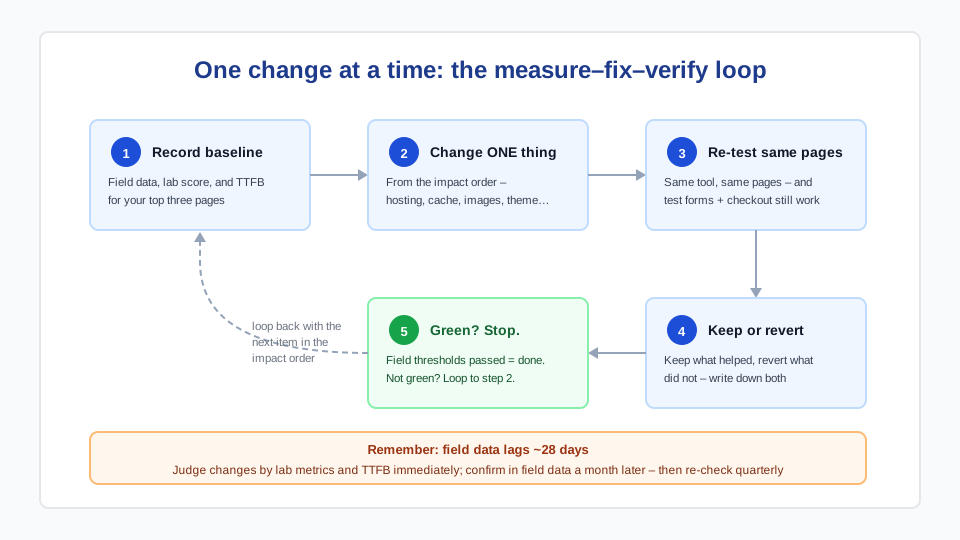
- Record baseline: field data (or Search Console CWV), lab score, and TTFB for your top three pages.
- Apply one change from the impact order above.
- Re-test the same pages; test forms and checkout still work.
- Keep what helped, revert what didn’t, write down both.
- Stop when field data is green. Re-check quarterly — speed regresses as content and plugins accumulate.
Field data lags 28 days, so judge changes by lab metrics and TTFB immediately, and confirm in field data a month later. If you get through hosting, caching, and images and the numbers still resist, the remaining work is template-level engineering — render-blocking assets, critical CSS, script scheduling — which is exactly what our website speed service does, with before/after measurements as the deliverable.
Frequently asked questions
What is a good LCP for a WordPress site?
2.5 seconds or less at the 75th percentile of real visitors — that is Google’s “good” threshold. Between 2.5 and 4 seconds needs improvement; over 4 is failing. Most WordPress sites that fail LCP have one of three problems: slow server response, an uncompressed hero image, or no page caching — in that order of frequency.
Do caching plugins conflict with each other?
Yes, reliably. Two caching plugins double-process pages, fight over rewrite rules, and produce stale or broken output that is painful to debug. Run exactly one — or none, if your host provides server-level caching, which is faster than any plugin. The same applies to running a separate minifier alongside a caching plugin that already minifies.
Will a CDN speed up my site for local BC visitors?
Modestly — a CDN’s big wins come from serving distant visitors, and if your server is already in Canada, Vancouver visitors gain less. It still helps: cached static assets, DDoS protection, and a free WAF make Cloudflare worthwhile on almost any site. Just don’t expect it to fix a slow server; TTFB problems live at the origin.
Why is my PageSpeed score bad but the site feels fast?
The lab score simulates a mid-range phone on a throttled connection — stricter conditions than your office WiFi on a desktop. Check the field data instead: if real users’ LCP, INP, and CLS are green, your SEO is not being held back by speed regardless of the lab score. Optimize for the field thresholds, not the screenshot.
How much does site speed affect Google rankings?
It is a real but modest ranking signal — a tiebreaker among similarly relevant pages, not a way to outrank better content. The bigger effect is indirect: slow pages lose visitors before they convert, and mobile users are the least patient. Passing Core Web Vitals is worth doing; obsessing beyond the thresholds is not.
What is a good TTFB for WordPress?
Under 200 ms is good; 200–800 ms is acceptable; consistently above 800 ms means the server itself is slow — from overloaded shared hosting, an old PHP version, or no server-side caching. TTFB is the number front-end plugins cannot fix, which makes it the first thing to check before spending time on optimization.