

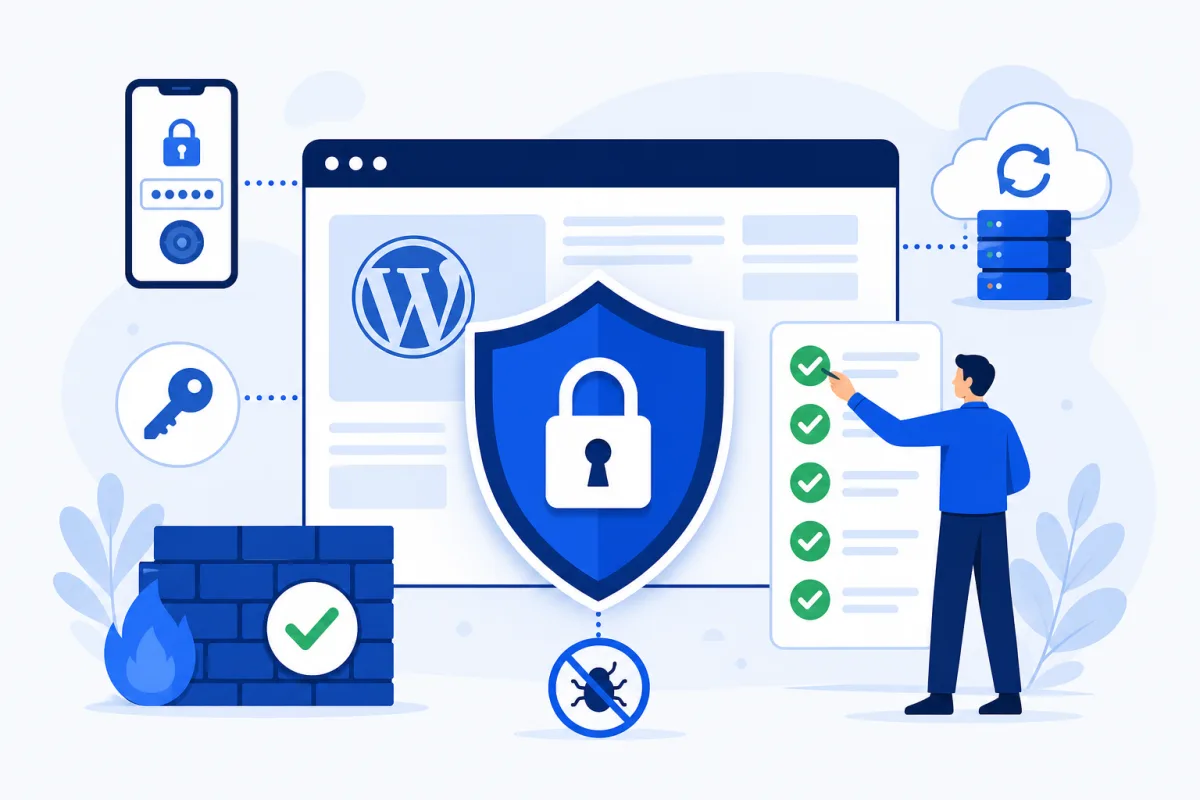
WordPress security · Small business
How to Secure a WordPress Site: 21-Point Small-Business Checklist
WordPress powers over 40% of the web, which makes it the most attacked platform on the internet — not because it is weak, but because one automated exploit works against millions of sites. The good news: nearly every real-world WordPress hack walks through one of four well-understood doors, and closing them does not require a security team. This 21-point checklist covers how to secure a WordPress site properly — grouped so you can do the highest-impact work first.
Know your enemy: how WordPress sites actually get hacked

Understanding the attack paths keeps you from wasting effort. Almost every compromise we clean up for BC businesses entered through: a known vulnerability in an outdated or abandoned plugin/theme (the largest share by far), weak or reused admin credentials without 2FA, outdated WordPress core or PHP, or a compromised neighbour on badly isolated shared hosting. Everything below maps to closing those doors.
The 21-point checklist

Group 1: Access control (points 1–5)
- Strong, unique passwords for every account — generated by a password manager, never reused from other services. Most “WordPress hacks” are just a password reused from a breached site elsewhere.
- Two-factor authentication on all administrator accounts. A free plugin (Wordfence Login Security, Two-Factor) plus a phone app closes the door on stolen passwords entirely.
- Limit login attempts. Out of the box, WordPress lets bots try passwords forever. A rate-limiting plugin turns brute force from viable to pointless.
- No “admin” username. It is the first username every bot tries. Create a new administrator with a non-obvious name and delete (or demote) the old one.
- Least-privilege roles. Content writers are Editors, not Administrators. Every unnecessary admin account is an extra set of keys that can be phished. Review the user list monthly and remove departed staff the day they leave.
Group 2: Update discipline (points 6–9)
- Keep WordPress core current. Minor releases (security fixes) should auto-update — WordPress does this by default; confirm nobody disabled it.
- Update plugins and themes promptly — security releases within days, the rest in a monthly pass after a backup. This is the single highest-value habit on the page; the full routine lives in our WordPress maintenance checklist.
- Delete deactivated plugins and themes entirely. Deactivated code still executes on many attack paths. If you don’t use it, it should not be on the server.
- Avoid abandoned plugins. Before installing, check the last update date and tested-up-to version. A plugin untouched for two years is a future vulnerability with no fix coming. Nulled (pirated premium) plugins are malware delivery, full stop.
Group 3: Hosting and backups (points 10–13)
- Put a WAF in front of the site. A web application firewall (Cloudflare, or your host’s) blocks exploit attempts before they reach WordPress — including many attacks against plugins you haven’t updated yet.
- SSL everywhere and a current PHP version. Old PHP is both slow and unpatched; check the version in your hosting panel and stay on a supported release. Quality managed WordPress hosting handles both by default — and proper account isolation, which is what protects you from hacked neighbours on shared servers.
- Daily automated backups, stored off the web server. Backups on the same server die with the server. Cloud storage or host-managed off-site copies, retained for at least 30 days.
- Test a restore quarterly. An untested backup is a hope. Restoring to a staging site once a quarter proves the safety net is real — this is the most skipped point on the list and the one that saves businesses.
Group 4: Hardening (points 14–18)
- Disable file editing in the dashboard: add
define( 'DISALLOW_FILE_EDIT', true );towp-config.php. If an attacker gets admin access, this blocks the easiest path to planting code. - Disable XML-RPC if you don’t use it (most sites don’t — it mainly serves the mobile app and Jetpack). It is a favourite amplifier for brute-force attacks.
- Turn off comments where you don’t need them — Settings → Discussion, or per-post. Unmoderated comments become spam-link dumps that hurt trust and SEO; if you do want comments, use anti-spam protection and moderation.
- Send basic security headers (X-Frame-Options, X-Content-Type-Options, a starter Content-Security-Policy) via your host, Cloudflare, or a plugin. Cheap defence-in-depth against click-jacking and injected-content tricks.
- Check file permissions: directories 755, files 644,
wp-config.php640 or stricter, and nothing world-writable. Wrong permissions turn any small breach into full compromise.
Group 5: Monitoring (points 19–21)
- Run scheduled malware and file-integrity scans (Wordfence, or server-side scanning from your host) so injected code is found in days, not months. We compare the main security plugins, with a week of our own attack logs, in WordPress security plugins compared.
- Monitor uptime with alerts. A free uptime monitor tells you about defacement or downtime before a customer does.
- Review users and activity monthly. Unknown admin accounts, unexpected role changes, or logins at strange hours are the early smoke of a compromise — the same signals we flag in reset-email investigations that turn out to be security incidents.
If you have already been hacked
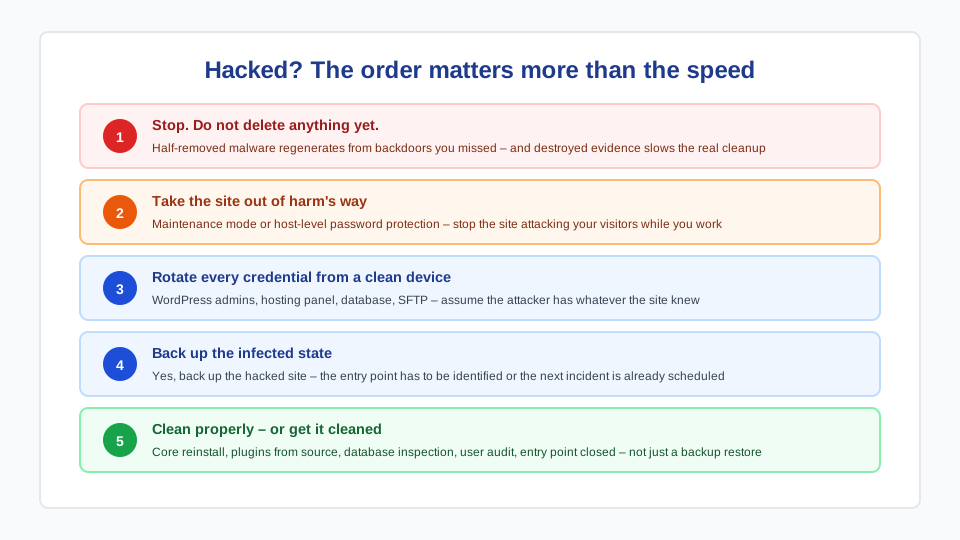
Signs: Google flags the site, customers report redirects or spam, unknown admin users appear, or the site throws the critical error screen with no recent changes. What to do — and not do:
- Don’t delete things randomly. Half-removed malware regenerates from backdoors you missed, and destroyed evidence makes professional cleanup slower.
- Take the site into maintenance mode or password-protect it at the host level to stop harm to visitors.
- Change every credential — WordPress admins, hosting, database, SFTP — from a clean device.
- Preserve a copy of the infected state (yes, back up the hacked site) so the entry point can be identified.
- Clean properly or get it cleaned: core reinstall, plugin reinstall from source, database inspection, user audit, and the entry point closed — the full sequence of a professional hacked WordPress cleanup. Restoring an old backup without closing the hole just schedules the next incident.
When to go beyond the checklist
This checklist is the right scope for a small-business marketing site. Raise the bar — professional monitoring, hardening review, and incident planning — when the site takes payments, stores client records, serves a regulated profession, or when downtime costs real revenue per hour. That tier is what our cybersecurity services cover, and it starts with exactly this checklist done properly, not with buying tools.
Frequently asked questions
Is WordPress secure out of the box?
The core software is well-maintained and patched quickly — core WordPress itself is rarely the way in. The risk lives in what gets added: plugins, themes, weak passwords, and cheap hosting. A WordPress site with disciplined updates, 2FA, a WAF, and tested backups is genuinely hard to compromise; one with 30 stale plugins and a reused password is a matter of time.
What are the best free WordPress security steps?
In impact order: enable 2FA on admin accounts, update everything and delete unused plugins, put free Cloudflare in front of the site, limit login attempts, and add DISALLOW_FILE_EDIT to wp-config.php. All free, all doable in an afternoon, and together they close the doors most real attacks use.
Do I need a WordPress security plugin?
One is useful — for login limiting, 2FA, scanning, and an activity log. More than one causes conflicts without adding safety. A security plugin does not replace updates, backups, or decent hosting; it is monitoring and door-locking, not a force field. Beware of plugins that mostly generate scary-sounding notifications to upsell you.
How do WordPress sites actually get hacked?
Overwhelmingly through automated scanning, not targeted attacks: known vulnerabilities in outdated or abandoned plugins and themes (the largest share), brute-forced or reused credentials without 2FA, outdated core or PHP versions, and cross-contamination on poorly isolated shared hosting. Each has a specific, cheap countermeasure — that is what the 21 points are.
What does a hacked WordPress cleanup cost?
Professional cleanup for a small-business site typically runs $500–$1,500 CAD depending on infection depth, whether backups exist, and how much was modified — plus the harder-to-invoice costs: downtime, blacklisting, and customer trust. The prevention on this page costs a fraction of one incident, which is the honest math of WordPress security.
Does my host handle WordPress security for me?
Partially, and it varies enormously. Good managed WordPress hosting provides server patching, WAF, isolation, and daily backups — groups 3’s infrastructure. No host handles your passwords, your user roles, your plugin choices, or your update discipline. Read your plan’s actual inclusions; “secure hosting” on a features page is not an incident-response commitment.